phpMyAdmin inlogpagina blokkeren

      Geen reacties op phpMyAdmin inlogpagina blokkeren

Om op Ubuntu je phpMyAdmin inlogpagina voor de buitenwereld te blokkeren en alleen vanaf je thuis ip-adres toegankelijk te maken voer het volgende in de terminal uit:

SSH naar je server:
sudo ssh root@[Server_IP_adres]

Ga met nano of vim naar het bestand /etc/phpmyadmin/apache.conf
# sudo vim /etc/phpmyadmin/apache.conf

Voeg hier onderaan het volgende toe:

# Disallow web access to directories that don’t need it
<Directory /usr/share/phpmyadmin/templates>
    Require all denied
</Directory>
<Directory /usr/share/phpmyadmin/libraries>
    Require all denied
</Directory>
<Directory /usr/share/phpmyadmin/setup/lib>
    Require all denied
</Directory>
<Directory “/usr/share/phpmyadmin”>
Order Deny,Allow
Deny from all
# Require all denied
Allow from [IP-adres via www.watismijnip.nl]
</Directory>


Snap! – Mary Had A Little Boy [Maestro Mix]

Snap! is een eurodance- en rap-groep die in de eerste helft van de jaren negentig wereldwijd enkele grote hits scoorde. De groep had een aantal veranderingen in bezetting door de jaren heen, maar was het meest succesvol in de begintijd met rapper Turbo B, die meerapte op nummers als “The Power” en “Rhythm Is a Dancer”. Lees meer op https://nl.wikipedia.org/wiki/Snap!

MySQL root wachtwoord reset

      Geen reacties op MySQL root wachtwoord reset

Met dank aan deze website op https://linuxconfig.org, een werkende oplossing om het MySQL root wachtwoord weer werkend te krijgen op phpMyAdmin.

Instructions

Reset by using mysql_secure_installation

The simplest approach to reset MySQL database root password is to execute mysql_secure_installation program and when prompted entering your new root MySQL password:

$ sudo mysql_secure_installation
….
Please set the password for root here.
New password:
Re-enter new password:

Reset by using skip-grant-tables

If from some reason the above method fails follow the step below to use --skip-grant-tables to reset MySQL root password.

Let’s start by stopping the currently running MySQL database:

$ sudo service mysql stop

Next, create a /var/run/mysqld directory to be used by MySQL process to store and access socket file:

$ sudo mkdir -p /var/run/mysqld
$ sudo chown mysql:mysql /var/run/mysqld

Once ready manually start MySQL with the following linux command and options:

$ sudo /usr/sbin/mysqld –skip-grant-tables –skip-networking &
$ [1] 2708

Confirm that the process is running as expected:

$ jobs
[1]+ Running sudo /usr/sbin/mysqld –skip-grant-tables
–skip-networking &

At this stage we are able to access MySQL database without password:

$ mysql -u root
Welcome to the MySQL monitor. Commands end with ; or \g.
Your MySQL connection id is 3
Server version: 5.7.20-1ubuntu1 (Ubuntu)

Copyright (c) 2000, 2017, Oracle and/or its affiliates.
All rights reserved.

Oracle is a registered trademark of Oracle Corporation and/or its
affiliates. Other names may be trademarks of their respective
owners.

Type ‘help;’ or ‘\h’ for help. Type ‘\c’ to clear the
current input statement.

mysql>

Using the MySQL session first flush privileges:

mysql> FLUSH PRIVILEGES;
Query OK, 0 rows affected (0.00 sec)

Next, reset root password. The following commands will reset MySQL root password to 
linuxconfig.org: (= het nieuwe wachtwoord)

mysql> USE mysql;
Database changed
mysql> UPDATE user SET authentication_string=PASSWORD (“linuxconfig.org”) WHERE User=’root’;
Query OK, 0 rows affected, 1 warning (0.00 sec)
Rows matched: 1 Changed: 0 Warnings: 1
mysql> UPDATE user SET plugin=”mysql_native_password”
WHERE User=’root’;
Query OK, 0 rows affected (0.00 sec)
Rows matched: 1 Changed: 0 Warnings: 0

Quit MySQL session:

mysql> quit
Bye

Gracefully terminate current mysqld process:

$ sudo pkill mysqld
linuxconfig@ubuntu:~$ jobs
[1]+ Done sudo /usr/sbin/mysqld –skip-grant-tables –skip-networking

Lastly, start MYSQL database:

$ sudo service mysql start

If all went well you should now be able to login to your MySQL database with a root password:

$ mysql -u root –password=linuxconfig.org
mysql: [Warning] Using a password on the command line interface can be insecure.
Welcome to the MySQL monitor. Commands end with ; or \g.
Your MySQL connection id is 4
Server version: 5.7.20-1ubuntu1 (Ubuntu)
Copyright (c) 2000, 2017, Oracle and/or its affiliates. All rights reserved.
Oracle is a registered trademark of Oracle Corporation and/or its
affiliates. Other names may be trademarks of their respective
owners.
Type ‘help;’ or ‘\h’ for help. Type ‘\c’ to clear the current input statement.
mysql>


Opm: Het kan zijn dat phpMyAdmin opnieuw moet worden geïnstalleerd, tijdens deze installatie wordt gevraagd of de bestaande databases verwijderd moeten worden, pas daar dus op als je dat niet wil.
Eerst sudo apt-get remove phpmyadmin
Daarna
sudo apt-get install phpmyadmin php-mbstring php-gettext -y


Subsonic Mattizz muziekstation

      Geen reacties op Subsonic Mattizz muziekstation

Subsonic is een serverapplicatie die zich vooral richt op muziek. Om met Subsonic aan de slag te gaan, is een speciale server of nas aan te raden. Je kunt daarvoor ook Windows als server gebruiken of het eerst op Windows installeren om te testen.

Subsonic heeft veel muziekspecifieke functies. Zo werkt het met veel mediaspelers, zoals Winamp, iTunes, VLC en Windows Media Player. Met de handige ingebouwde transcoding engine kun je lossy en lossless formaten tijdens het luisteren omzetten naar mp3’tjes. Ondersteunt je afspeelapparaat geen flac-bestanden, dan kun je er in ieder geval in mp3-formaat naar luisteren. Voor een aantal functies van Subsonic heb je de Premium-variant nodig.
Zie voor verdere uitleg in installatiehandleiding dit artikel op computertotaal.nl

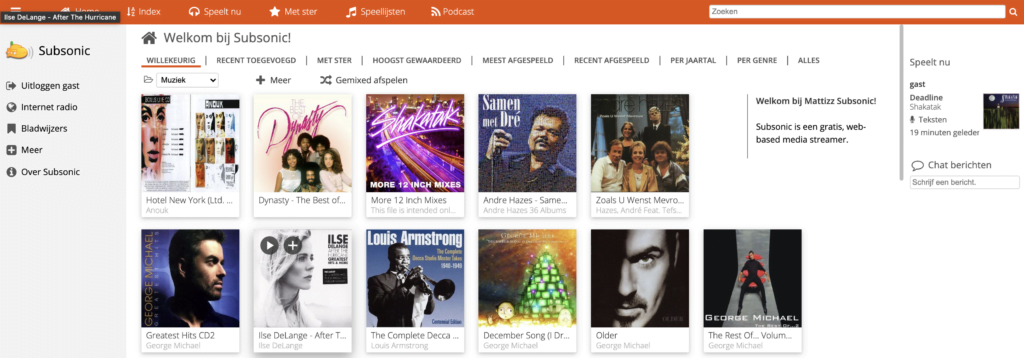
De interface van Subsonic ziet er uit zoals hieronder, de getoonde server draait op mattizz.nl en is gratis en voor niets te bezoeken en de muziek en Podcasts te beluisteren via deze link:
http://muziek.mattizz.nl, waarbij je automatisch als gast inlogt via deze optie:
http://muziek.mattizz.nl:4040/login.view?user=gast&password=gast


Reclamevrij internet: PI-hole

      Geen reacties op Reclamevrij internet: PI-hole

Als je je DNS internetverkeer vanaf je router doorstuurt naar PI-hole dan worden alle reclame banners en ongewenst internetverkeer geblokkeerd

Het is één van de grootste irritaties op internet: advertenties. Je kunt natuurlijk voor elk apparaat een ad-blocker in je browser installeren, maar als je ook je smartphone, slimme televisie en spelcomputer tegen reclames wilt beschermen, dan is een centrale ad-blocker veel handiger.
Er zijn dure commerciële oplossingen beschikbaar, maar met een Raspberry Pi van een paar tientjes en Pi-hole bereik je exact hetzelfde.

Kijk op de volgende pagina’s voor meer informatie:

Als je een Raspberry PI hebt (mag een oudere zijn) dan kun je op het micro SD kaartje, nadat je deze geflashed hebt met Raspberry PI OS, eenvoudig de PI-hole software installeren met het terminal commando:

curl -sSL https://install.pi-hole.net | bash

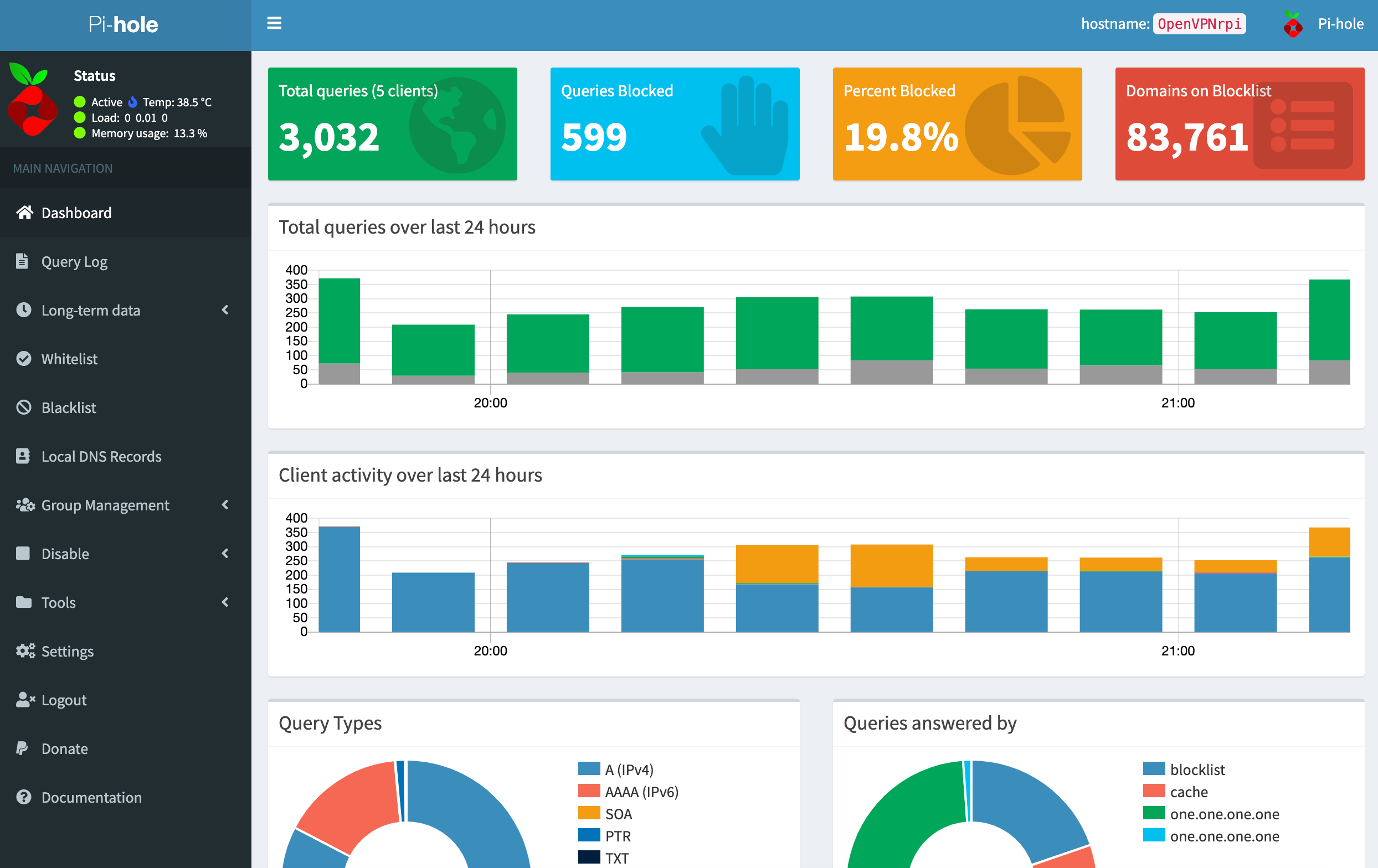
Hierna is het PI-hole dashboard terug te vinden op het (vaste) IP-adres van je Raspberry PI die je aan je bekabeld aan je router hebt gekoppeld: [IP-adres]/admin

Het resultaat ziet eruit zoals hieronder

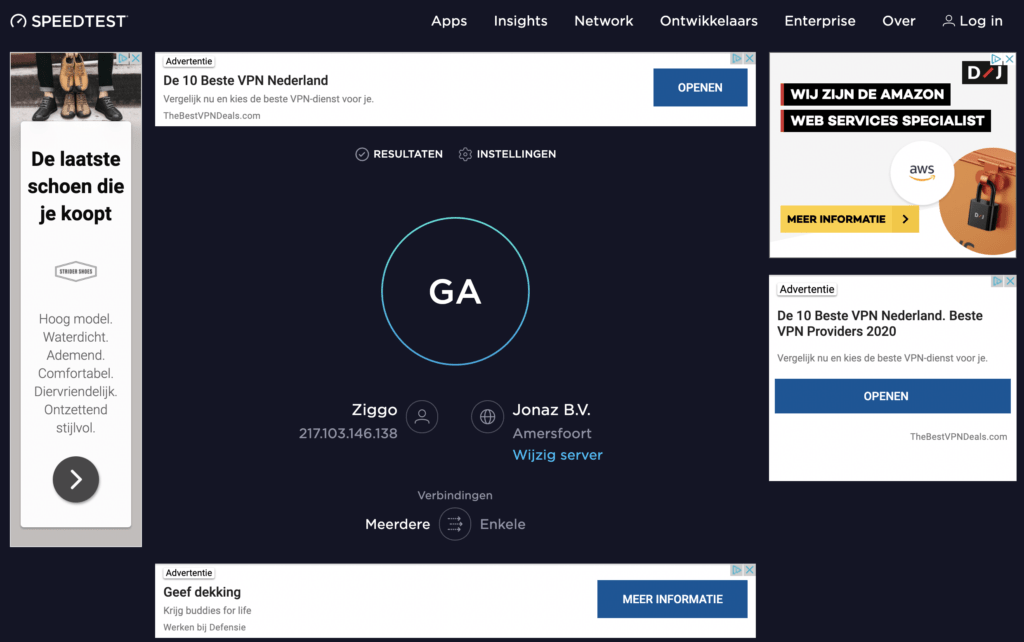
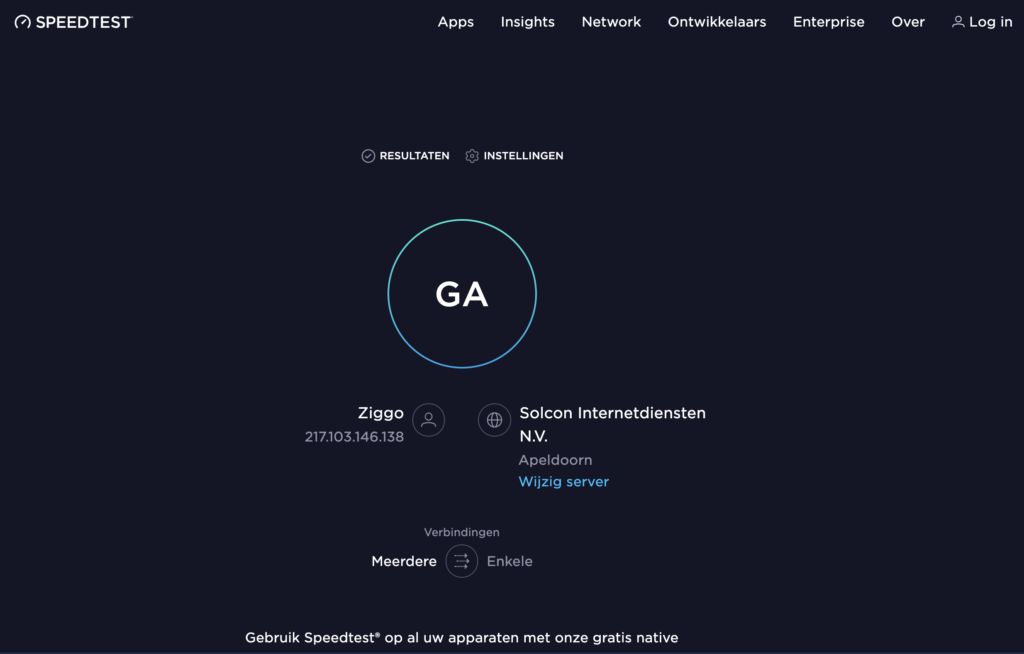
Hieronder een voorbeeld van het onderdrukken van de reclame op de speedtest pagina https://www.speedtest.net

Op dit Ziggo forum zijn nog tips voor het geval er nog problemen zijn.
Zo is daar te lezen dat na het uitzetten van DHCP in de Connect Box, deze moet worden herstart zoals hieronder wordt uitgelegd:

Dan zijn er nog twee vervolgstappen nodig:
Ten eerste zijn die Ziggo-modem-routers wat nukkig: Uitschakelen van de DHCP-server en deze instelling opslaan is niet voldoende; je moet daarna ook nog eens de Ziggo-modem-router opnieuw opstarten.
Daarna alle clients die met DHCP werken opnieuw opstarten (om te forceren dat deze meteen de nieuwe verbindingsgegevens gaan gebruiken).


App

Voor Android is er ook een app, zie hier voor meer informatie. Hieronder een screenshot van deze app.

Firefox, Chrome, Edge en Safari Extensies

PI-hole blokkeert ook websites waar je misschien toch naar wil kijken. Als voorbeeld hieronder een zoekvraag in Google naar “KPN glasvezelnet”.
Het eerste resultaat genaamd “KPN Glasvezel – Altijd een perfecte verbinding – KPN.com” lijkt te wijzen naar https://shop.kpn.com/internet-tv/internet-tv (links onderin de browser te zien als je er met de muis over de link gaat). In werkelijkheid ga je naar de link hieronder:

https://clickserve.dartsearch.net/link/click?lid=43700052625612121&ds_s_kwgid=58700005778316200&ds_a_cid=10189206&ds_a_caid=9724790520&ds_a_agid=99502120277&ds_a_fiid=&ds_a_lid=kwd-11176675539&&ds_e_adid=461258580142&ds_e_matchtype=search&ds_e_device=c&ds_e_network=g&&ds_url_v=2&ds_dest_url=https://shop.kpn.com/internet-tv/internet-tv/?pagina=glasvezel&pccheck&gclsrc=aw.ds&&campaignid=ps:s=go:t=ResidentialAdwords:c=1.+kpn+%7C+sbrd+%7C+Glasvezel+%7C+Regulier+%7C+Nieuwe+klant:d=KPN+glasvezel+-+(exact):co=kpn%20glasvezel:f1=kpn+glasvezel:f2=e&gclid=CjwKCAjwlID8BRAFEiwAnUoK1WzJPbHPHyODaVV0rb7UlcFOAY67UtYaaRNDlEXr8OX3WYqRW0nulBoCY-8QAvD_BwE

En deze link wordt geblokkeerd door PI-hole omdat dit als reclame wordt gezien en dat is het ook, als je je nog afvraagt hoe het komt dat je als je ergens op zoekt je al resultaten krijgt die aansluiten op waar je eerder naar gekeken hebt (hoe weten ze dat toch ?) dan komt dat oa. door dit soort trucs.

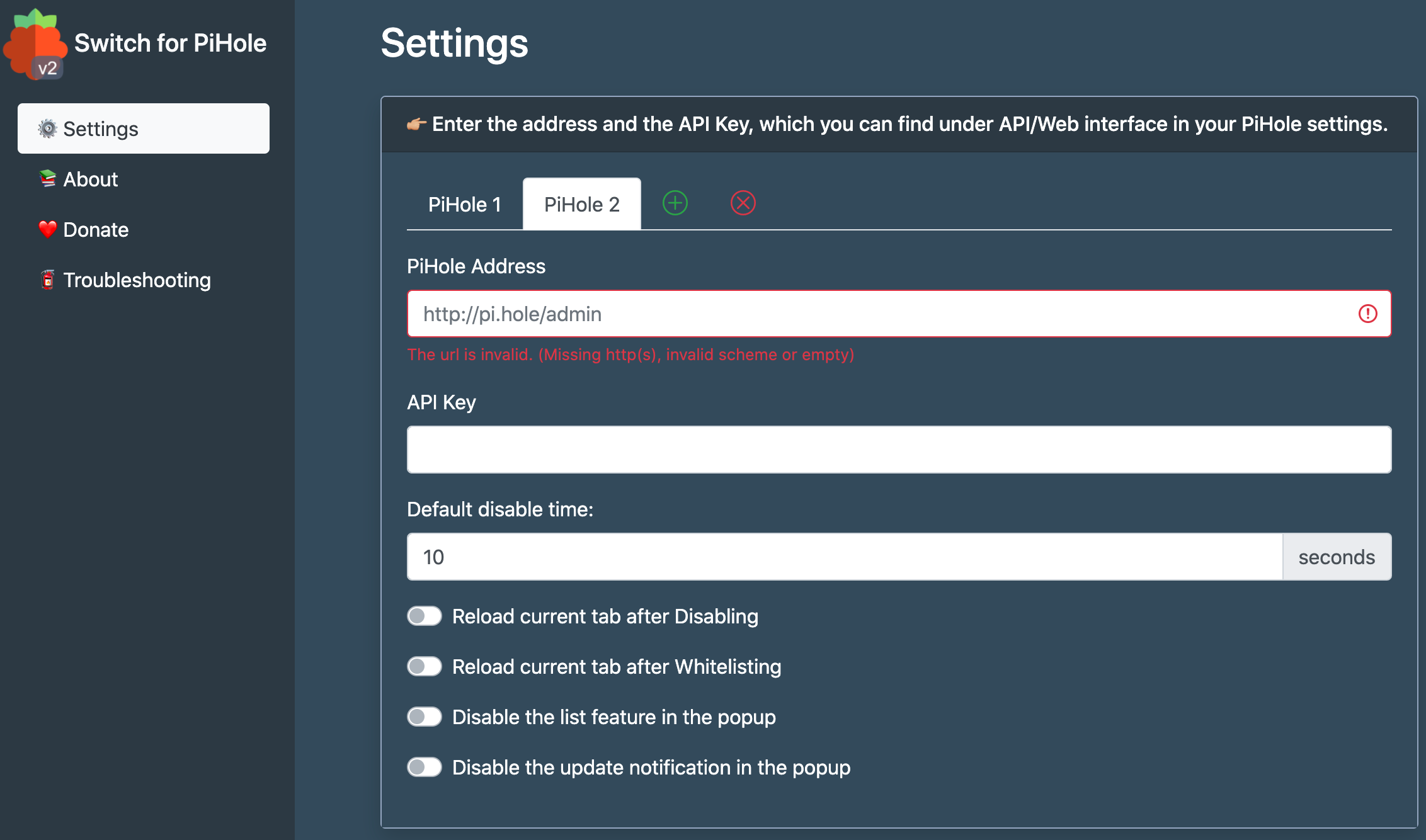
Maar als je toch naar deze pagina wil dan kun je voor Firefox, Chrome, Edge (allen gratis) en Safari (betaald) de Switch for PI-hole in je browser installeren zodat je er een klein icoon bijkrijgt waarmee je PI-hole tijdelijk kunt uitzetten of een website vertrouwd (whitelist) maken:
Voor Firefox
Voor Chrome
Voor Edge
Voor Safari
De instellingen van de plugin zien eruit zoals hieronder:


Installeer Netdata met kickstart-static64.sh

      Geen reacties op Installeer Netdata met kickstart-static64.sh

Netdata is een Open Source server monitoring tool. Hier is er meer informatie over te vinden: https://www.netdata.cloud
Netdata is simpel met 1 commando te installeren zoals hieronder is uitgelegd (zie https://learn.netdata.cloud/docs/agent/packaging/installer/methods/kickstart-64)

Installatie:

This page covers detailed instructions on using and configuring the installation script named kickstart-static64.sh.
This method uses a pre-compiled static binary to install Netdata on any Intel/AMD 64bit Linux system and on any Linux distribution, even those with a broken or unsupported package manager.
To install Netdata from a static binary package, including all dependencies required to connect to Netdata Cloud, and get automatic nightly updates, run the following as your normal user:

bash <(curl -Ss https://my-netdata.io/kickstart-static64.sh)

This script installs Netdata at /opt/netdata
Opmerking:
Standaard is de Netdata pagina zonder inlog te bezoeken op [IP-adres of domeinnaam]:19999
Om dit te voorkomen voer de volgende commando’s uit:

# sudo vim /etc/netdata/netdata.conf

Pas in netdata.conf de volgende regels aan zodat de Netdata pagina enkel te bezoeken is vanaf bijvoorbeeld het thuis IP-adres. Er kunnen meer IP-adressen toegevoegd worden waar vandaan de monitoring pagina vaker bezocht wordt, zolang dat natuurlijk geen publiek IP-adres is waar meerderen gebruik van maken:

allow connections from = 216.***.***.***
allow dashboard from = 216.***.***.***
allow badges from = 216.***.***.***
allow streaming from = 216.***.***.***
allow netdata.conf from = 216.***.***.***
allow management from = 216.***.***.***

Netdata ziet er zo uit:

Om Netdata op een Synology te installeren kijk hieronder:
https://learn.netdata.cloud/docs/agent/packaging/installer/methods/synology
Een 2e optie is Netdata op een Synology als Docker container te installeren, Zoek daarvoor in Docker onder “register” naar “Netdata” en installeer de container zoals hieronder:

De website met de handmatige instellingen: https://hub.docker.com/r/netdata/netdata
Het resultaat op het interne Synology IP-adres ziet eruit zoals hieronder:


Eenvoudig script om webpagina’s in WordPress te tonen

Hieronder een voorbeeld van een eenvoudig iframe scriptje om een externe webpagina in een WordPress pagina te tonen. Het (html) scriptje hieronder ziet er als volgt uit:

<iframe width=”600″ height=”1200″ style=”border:0;” src=”https://www.geenstijl.nl” frameborder=”0″ allowfullscreen=”allowfullscreen”>


Subsonic server verbinden met Sonos

      Geen reacties op Subsonic server verbinden met Sonos

Om de subsonic muziek service te koppelen aan de Sonos om via de Sonos app de Subsonis muziek af te spelen, doe het volgende:
Open http://SONOS_IP:1400/customsd.htm in a browser.
Enter the following values in the web form:
SID – Any legal value except 242
Service Name – Any name, for instance “Subsonic Remote”
Endpoint URL – http://SUBSONIC_IP:4040/ws/Sonos?ip=SUBSONIC_IP
Secure Endpoint URL – http://SUBSONIC_IP:4040/ws/Sonos?ip=SUBSONIC_IP
Polling Interval – 1200
Authentication – Session ID
Strings Table – Version: 6, URI: http://SUBSONIC_IP:4040/sonos/strings.xml
Presentation Map – Version: 3, URI: http://SUBSONIC_IP:4040/sonos/presentationMap.xml
Container Type – Music Service
Capabilities – Search, Favorites, User Content Playlists, Extended Metadata

Resultaat ziet er in de Sonos app uit zoals hieronder is weergegeven, muziek kan rechtstreeks over de Sonos worden afgespeeld:


Docker / Portainer GUI op Ubuntu 18.04

      Geen reacties op Docker / Portainer GUI op Ubuntu 18.04

Tekst is afkomstig van de websites:
https://clouding.io/hc/en-us/articles/360010398219-Install-Portainer-on-Ubuntu-18-04 en
https://linuxhint.com/install_portainer_docker_ui_ubuntu
First, it is recommended to update your system to the latest stable version. You can do it by running the following command:
sudo apt-get update -y
sudo apt-get upgrade -y


Install Docker

Next, you will need to install Docker CE on your server. By default, the latest version of Docker is not available in the Ubuntu 18.04 server default repository. So, you will need to add the repository for that:
First, download and add Docker CE GPG key with the following command:

sudo wget https://download.docker.com/linux/ubuntu/gpg
sudo apt-key add gpg


Next, add the Docker CE repository to APT with the following command:

sudo vim /etc/apt/sources.list.d/docker.list

Add the following line:

deb [arch=amd64] https://download.docker.com/linux/ubuntu xenial stable

Save and close the file, when you are finished. Then, update the repository with the following command:

apt-get update -y

Once the repository is updated, install Docker CE with the following command:

sudo apt-get install docker-ce -y

After installing Docker CE, check the Docker service with the following command:

sudo systemctl status docker

You should see the following output:

docker.service – Docker Application Container Engine
Loaded: loaded (/lib/systemd/system/docker.service; enabled; vendor preset: enabled)
Active: active (running) since Thu 2019-05-30 12:15:47 UTC; 25min ago
Docs: https://docs.docker.com
Main PID: 820 (dockerd)
Tasks: 16
CGroup: /system.slice/docker.service
├─ 820 /usr/bin/dockerd -H fd:// –containerd=/run/containerd/containerd.sock
└─2344 /usr/bin/docker-proxy -proto tcp -host-ip 0.0.0.0 -host-port 9000
 -container-ip 172.17.0.2 -container-port 9000
 
May 30 12:23:15 ubuntu1804 dockerd[820]: time=”2019-05-30T12:23:15.217067700Z”
level=info msg=”Ignoring extra error returned from registry: una

Install Portainer

Docker is now installed and running, it’s time to install Portainer. First, download the Portainer image from Docker Hub with the following command:

sudo docker pull portainer/portainer

Once the Portainer image downloaded, you should see the following output:

Using default tag: latest
latest: Pulling from portainer/portainer
d1e017099d17: Pull complete
0b1e707a06d2: Pull complete
Digest: sha256:d6cc2c20c0af38d8d557ab994c419c799a10fe825e4aa57fea2e2e507a13747d
Status: Downloaded newer image for portainer/portainer:latest

Once the download has been completed, create Portainer data directory with the following command:

sudo mkdir /opt/portainer /data

Next, run the Portainer container with the following command:

sudo docker run -d -p 9000:9000 -v /var/run/docker.sock:/var/run/docker.sock -v portainer_data:/data portainer/portainer

You can see the Portainer image with the following command:

sudo docker images

You should see the following output:

REPOSITORY            TAG        IMAGE ID      CREATED        SIZE
portainer/portainer   latest     19d07168491a  2 months ago   74.1MB

You can check the running container with the following command:

sudo docker ps

You should see the following output:

CONTAINER ID IMAGE COMMAND CREATED STATUS PORTS NAMES
8d0c002fda93 portainer/portainer “/portainer” 5 seconds ago Up 3 seconds
0.0.0.0:9000->9000/tcp confident_leavitt

Access Portainer Web Interface

Portainer container is now installed and running on port 9000. It’s time to access Portainer web interface. Now, open your web browser and type the URL http://**.**.**.**:9000 (Of http://domeinnaam:9000 / Localhost:9000). You will be redirected to the Portainer web interface as show below:

Hoe je Portainer upgrade naar versie 2.0 wordt hier uitgelegd:

Maar je kunt voor een upgrade ook deze commando’s uitvoeren (getest en werkend):
docker stop portainer
docker rm portainer
Those 2 commands will stop and remove the container respectively. Doing this will NOT remove your other applications/containers/etc.Now that you have stopped and removed the old version of Portainer, you can run this command
docker run -d -p 8000:8000 -p 9000:9000 –name=portainer –restart=always –pull=always -v /var/run/docker.sock:/var/run/docker.sock -v portainer_data:/data portainer/portainer-ce

Voor verdere instructies hoe Portainer gebruikt kan worden om een container toe te voegen kijk hier:
https://linuxhint.com/install_portainer_docker_ui_ubuntu