This page covers detailed instructions on using and configuring the installation script named kickstart-static64.sh. This method uses a pre-compiled static binary to install Netdata on any Intel/AMD 64bit Linux system and on any Linux distribution, even those with a broken or unsupported package manager. To install Netdata from a static binary package, including all dependencies required to connect to Netdata Cloud, and get automatic nightly updates, run the following as your normal user:
This script installs Netdata at /opt/netdata Opmerking: Standaard is de Netdata pagina zonder inlog te bezoeken op [IP-adres of domeinnaam]:19999 Om dit te voorkomen voer de volgende commando’s uit:
# sudo vim /etc/netdata/netdata.conf
Pas in netdata.conf de volgende regels aan zodat de Netdata pagina enkel te bezoeken is vanaf bijvoorbeeld het thuis IP-adres. Er kunnen meer IP-adressen toegevoegd worden waar vandaan de monitoring pagina vaker bezocht wordt, zolang dat natuurlijk geen publiek IP-adres is waar meerderen gebruik van maken:
allow connections from = 216.***.***.*** allow dashboard from = 216.***.***.*** allow badges from = 216.***.***.*** allow streaming from = 216.***.***.*** allow netdata.conf from = 216.***.***.*** allow management from = 216.***.***.***
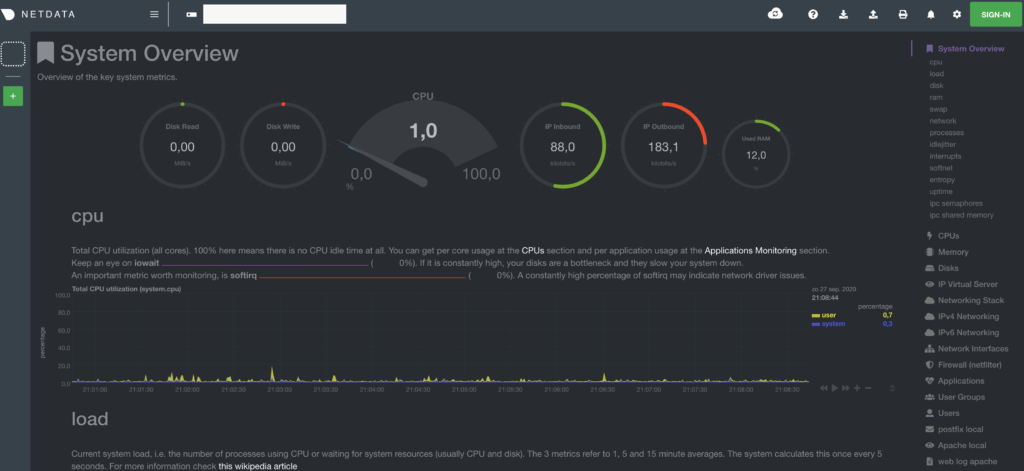
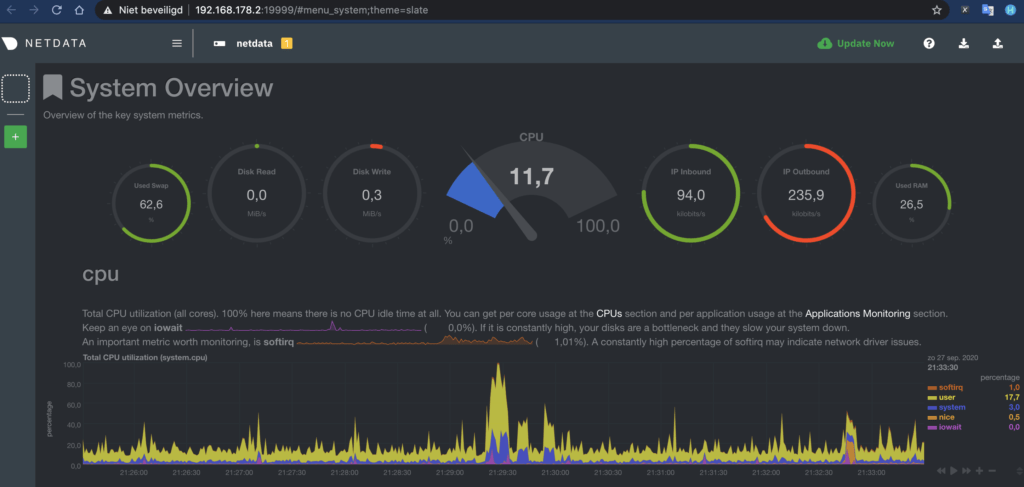
Netdata ziet er zo uit:
Om Netdata op een Synology te installeren kijk hieronder: https://learn.netdata.cloud/docs/agent/packaging/installer/methods/synology Een 2e optie is Netdata op een Synology als Docker container te installeren, Zoek daarvoor in Docker onder “register” naar “Netdata” en installeer de container zoals hieronder:
Hieronder een voorbeeld van een eenvoudig iframe scriptje om een externe webpagina in een WordPress pagina te tonen. Het (html) scriptje hieronder ziet er als volgt uit:
Om de subsonic muziek service te koppelen aan de Sonos om via de Sonos app de Subsonis muziek af te spelen, doe het volgende: Open http://SONOS_IP:1400/customsd.htm in a browser. Enter the following values in the web form: SID – Any legal value except 242 Service Name – Any name, for instance “Subsonic Remote” Endpoint URL – http://SUBSONIC_IP:4040/ws/Sonos?ip=SUBSONIC_IP Secure Endpoint URL – http://SUBSONIC_IP:4040/ws/Sonos?ip=SUBSONIC_IP Polling Interval – 1200 Authentication – Session ID Strings Table – Version: 6, URI: http://SUBSONIC_IP:4040/sonos/strings.xml Presentation Map – Version: 3, URI: http://SUBSONIC_IP:4040/sonos/presentationMap.xml Container Type – Music Service Capabilities – Search, Favorites, User Content Playlists, Extended Metadata
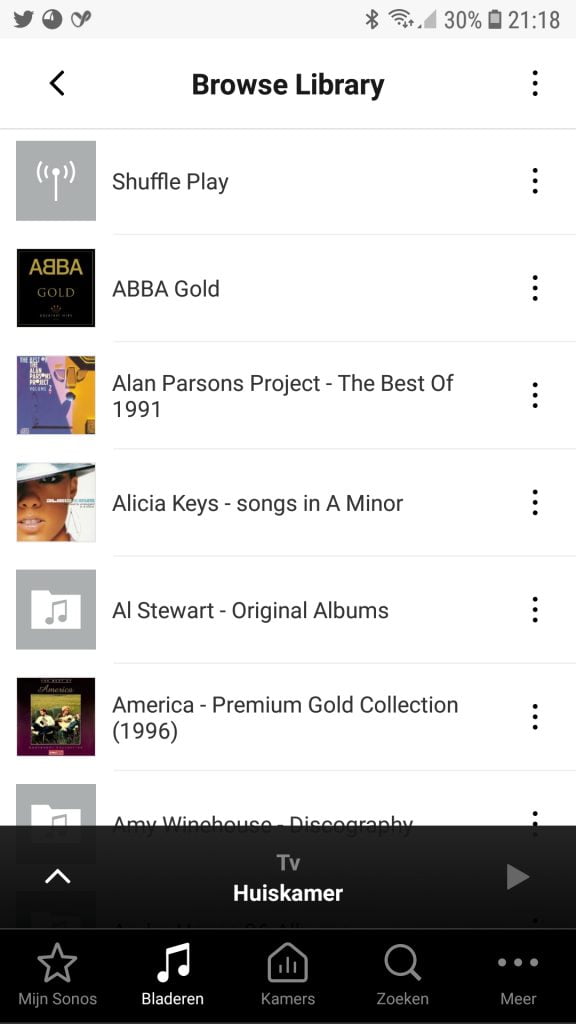
Resultaat ziet er in de Sonos app uit zoals hieronder is weergegeven, muziek kan rechtstreeks over de Sonos worden afgespeeld:
Next, you will need to install Docker CE on your server. By default, the latest version of Docker is not available in the Ubuntu 18.04 server default repository. So, you will need to add the repository for that: First, download and add Docker CE GPG key with the following command:
You can see the Portainer image with the following command:
sudo docker images
You should see the following output:
REPOSITORY TAG IMAGE ID CREATED SIZE portainer/portainer latest 19d07168491a 2 months ago 74.1MB
You can check the running container with the following command:
sudo docker ps
You should see the following output:
CONTAINER ID IMAGE COMMAND CREATED STATUS PORTS NAMES 8d0c002fda93 portainer/portainer “/portainer” 5 seconds ago Up 3 seconds 0.0.0.0:9000->9000/tcp confident_leavitt
Access Portainer Web Interface
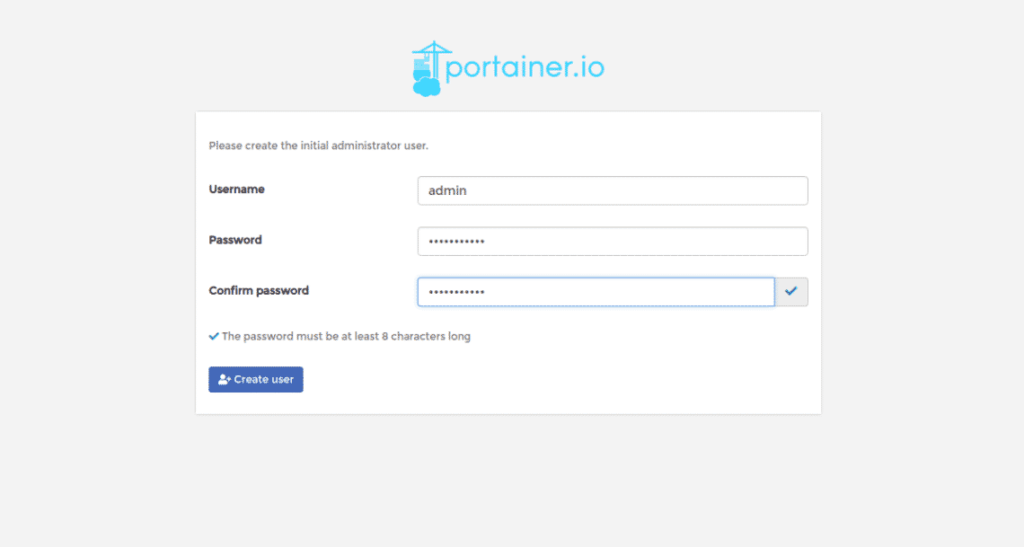
Portainer container is now installed and running on port 9000. It’s time to access Portainer web interface. Now, open your web browser and type the URL http://**.**.**.**:9000 (Of http://domeinnaam:9000 / Localhost:9000). You will be redirected to the Portainer web interface as show below:
Hoe je Portainer upgrade naar versie 2.0 wordt hier uitgelegd:
Maar je kunt voor een upgrade ook deze commando’s uitvoeren (getest en werkend): docker stop portainer docker rm portainer Those 2 commands will stop and remove the container respectively. Doing this will NOT remove your other applications/containers/etc.Now that you have stopped and removed the old version of Portainer, you can run this command docker run -d -p 8000:8000 -p 9000:9000 –name=portainer –restart=always –pull=always -v /var/run/docker.sock:/var/run/docker.sock -v portainer_data:/data portainer/portainer-ce
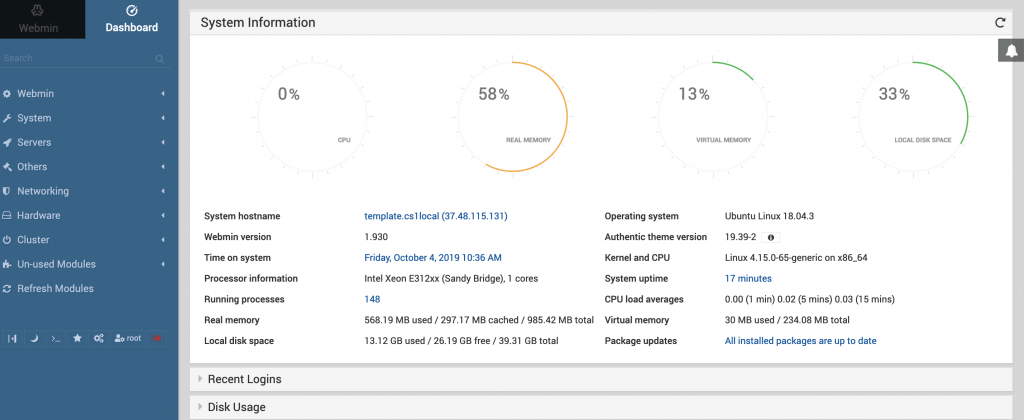
Om een grafische interface te kunnen gebruiken en zo een Ubuntu server makkelijker te kunnen beheren volg de onderstaande instructies:
Add Webmin Ubuntu repository
Open the /etc/apt/sources.list file to manually add the repository link to the list. In order to open the sources.list file, run the following command as root in your Terminal:
$ sudo vi /etc/apt/sources.list
This will open the file in the Nano editor. Move to the end of the file and paste the following line in order to add the Webmin repository to the list:
deb http://download.webmin.com/download/repository sarge contrib
The next step is to get the Webmin PGP key for the newly added repository. This way the system will trust this repository. Run the following command to do so:
$ wget http://www.webmin.com/jcameron-key.asc
Then add the key through the following command:
$ sudo apt-key add jcameron-key.asc
Installing Webmin on Ubuntu
Once the repository has been added and recognized, let us update the list of packages on our system through the following command:
$ sudo apt update
Finally, install the Webmin application through the following command:
$ sudo apt install webmin
Hierna kan er ingelogd worden op de interface door te gaan naar https://[server ip-adres of hostnaam]:10000
What’s Certbot? Certbot is a free, open source software tool for automatically using Let’s Encrypt certificates on manually-administrated websites to enable HTTPS. Certbot is made by the Electronic Frontier Foundation (EFF), a 501(c)3 nonprofit based in San Francisco, CA, that defends digital privacy, free speech, and innovation. Kortom, met Certbot kun je simpel een website voorzien van een gratis (Let’s Encrypt) certificaat en secure (https) maken. Hieronder de installatie instructies die te kiezen zijn voor alle webserver software en besturingssystemen. Als voorbeeld voor Apache op Ubuntu 18.04 LTS Bionic: 1. SSH into the server SSH into the server running your HTTP website as a user with sudo privileges. 2. Install snapd You’ll need to install snapd and make sure you follow any instructions to enable classic snap support.Follow these instructions on snapcraft’s site to install snapd. install snapd 3. Remove any Certbot OS packages If you have any Certbot packages installed using an OS package manager like apt, dnf, or yum, you should remove them before installing the Certbot snap to ensure that when you run the command certbot the snap is used rather than the installation from your OS package manager. The exact command to do this depends on your OS, but common examples are sudo apt-get remove certbot, sudo dnf remove certbot, or sudo yum remove certbot. 4. Install Certbot Run this command on the command line on the machine to install Certbot. sudo snap install –classic certbot
5. Choose how you’d like to run Certbot Either get and install your certificates… Run this command to get a certificate and have Certbot edit your Apache configuration automatically to serve it, turning on HTTPS access in a single step. sudo certbot –apache Or, just get a certificate If you’re feeling more conservative and would like to make the changes to your Apache configuration by hand, run this command. sudo certbot certonly –apache 6. Test automatic renewal The Certbot packages on your system come with a cron job or systemd timer that will renew your certificates automatically before they expire. You will not need to run Certbot again, unless you change your configuration. You can test automatic renewal for your certificates by running this command: sudo certbot renew –dry-run
The command to renew certbot is installed in one of the following locations: /etc/crontab/ /etc/cron./ systemctl list-timers
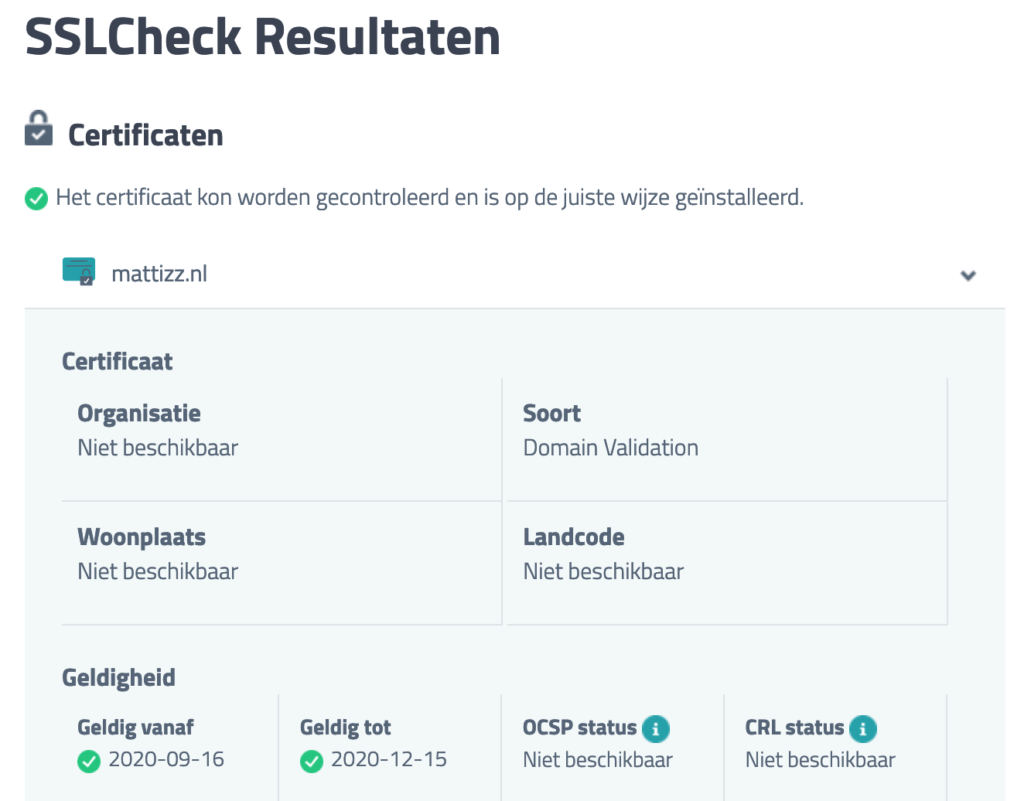
7. Confirm that Certbot worked To confirm that your site is set up properly, visit https://yourwebsite.com/ in your browser and look for the lock icon in the URL bar. If you want to check that you have the top-of-the-line installation, you can head to https://www.ssllabs.com/ssltest Of controleer de goede werking op https://www.sslcheck.nl/mattizz.nl
Op deze website www.ztatz.nl wordt uitgelegd hoe je vrij simpel mbv een zogenaamde P1 kabel en een Raspberry Pi 3 Model B+ je slimme meter live kunt uitlezen en over langere periode kunt zien hoeveel stroom en gas je wanneer verbruikt en hoeveel stroom je opwekt met je zonnepanelen. Er is ook een weer-API (openweathermap.org) aan gekoppeld zodat te zien is wat de buitentemperatuur was in relatie met aan het gasverbruik.
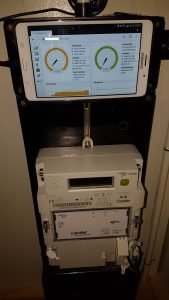
Aangezien ik nog een ongebruikte oude Samsung Galaxy Tab 4 (7.0) had liggen, deze in de meterkast gemonteerd zodat de actuele meterstanden altijd beschikbaar zijn. Hieronder een foto hoe de Samsung Tab in de meterkast is aangebracht:
Het is makkelijk als de RPI een vast ip-adres in het netwerk heeft. Dat is simpel als volgt uit te voeren waarbij alleen de wlan0 instellingen hoeven worden ingegeven als de RPI alleen draadloos wordt gebruikt. Om het interne ip-adres vast te stellen om via ssh in te loggen kan gebruik gemaakt worden van de app “fing”: Edit the file /etc/dhcpcd.conf as follows: Type sudo nano /etc/dhcpcd.conf at the command prompt. Scroll to the bottom of the script, and add the following lines: interface eth0 (als voorbeeld, verschilt per interne netwerk) static ip_address=192.168.178.8/24 static routers=192.168.178.1 static domain_name_servers=192.168.178.1
interface wlan0 (als voorbeeld, verschilt per interne netwerk) static ip_address=192.168.178.8/24 static routers=192.168.178.1 static domain_name_servers=192.168.178.1 Vergeet niet het p1mon ssh (root) wachtwoord te veranderen met het commando sudo passwd p1mon. Ook is het belangrijk dat de verwijzing naar de nameserver goed is ingesteld. Dit is aan te passen met het commando sudo vim /etc/resolv.conf.
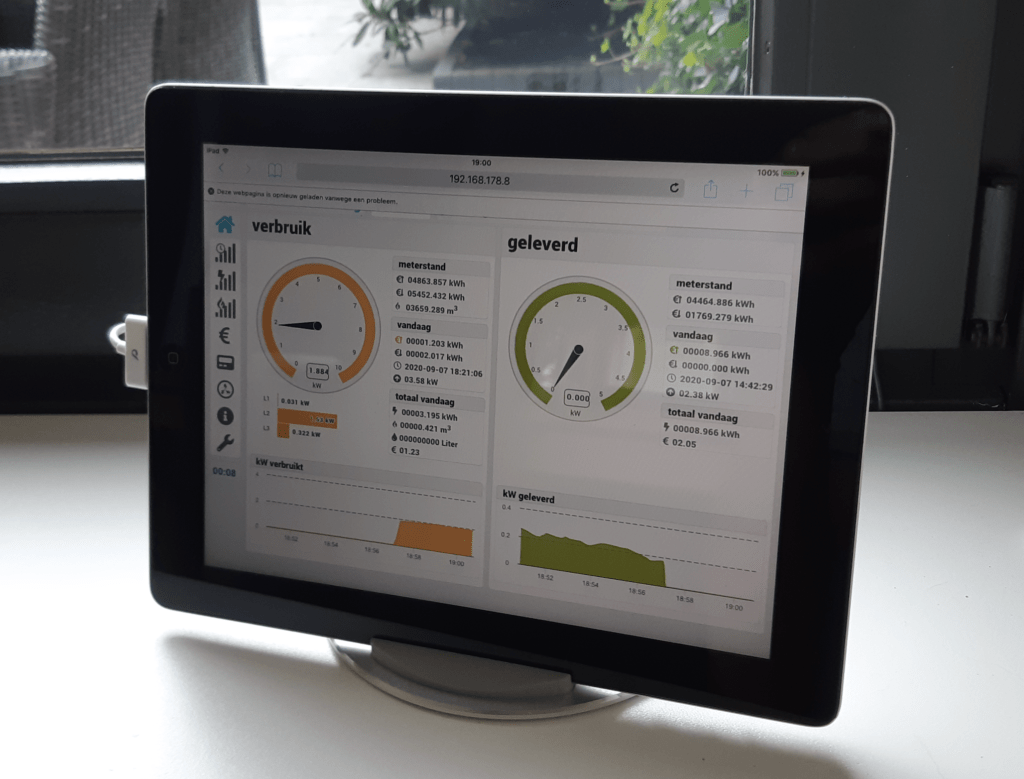
Op de interface zie je links (geel) het actuele verbruik, rechts (groen) is de actuele opbrengst van de zonnepanelen. Hieronder een voorbeeld van de toepassing van p1mon op een oude iPad:
Om een server IP-adres te voorzien van een domeinnaam:
Vanuit het beheer van de domeinnaam het A-record laten verwijzen naar het IP-adres van de server waar de WordPress website draait:
Via SSH verbinden met de server (Ubuntu 18.04 LTS 64bit, Apache/2.4.29, WordPress 5.5.1) en gaan naar het pad /etc/apache2/sites-enabled en het bestand wordpress.conf als volgt aanpassen:
/etc/apache2/sites-enabled# sudo vim wordpress.conf
Om te voorkomen dat de website ook op het IP-adres te bezoeken is moet het .htaccess bestand op het pad /var/www/html/wordpress worden aangepast. Het .htaccess bestand is zichtbaar te maken met het commando # ls -a Voeg aan dit bestand de volgende regels toe met het commando: sudo vim .htaccess
Als nu de website bezocht wordt dmv het IP-adres, verschijnt automatisch de domeinnaam in de browser.
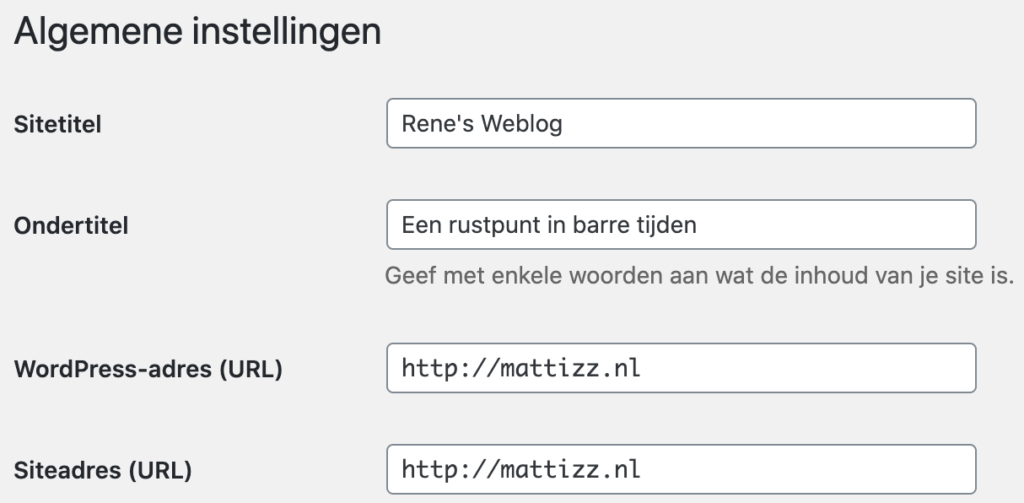
Bij mijn WordPress instellingen verwezen alle interne linkjes nog naar het IP-adres ipv de domeinnaam en kan bij het WordPress beheer (Dashboard) bij Instellingen –> Algemeen de URL aangepast worden zoals hieronder is te zien:
Love Me, Love Me, Love Me, Love Me Say you do Let me fly away with you For my love is like the wind And wild is the wind Wild is the wind
Give me more than one caress Satisfy this hungriness Let the wind blow through your heart Oh wild is the wind Wild is the wind
You touch me I hear the sound of mandolins You kiss me With your kiss my life begins You’re spring to me All things to me Don’t you know You’re life itself!
Like the leaf Clings to the tree Oh my darling cling to me For we’re like creatures of the wind And wild is the wind Wild is the wind
You have been loved
She takes the back road and the lane Past the school that has not changed In all this time She thinks of when the boy was young All the battles she had won Just to give him life
That man She loved that man For all his life But now we meet to take him flowers And only god knows why
For what’s the use in pressing palms When children fade in mother’s arms It’s a cruel world, we’ve so much to lose And what we have to learn, we rarely choose
So if it’s god who took her son He cannot be the one living in her mind
Take care my love, she said Don’t think that god is dead Take care my love, she said
Het verschil tussen het gebruik met of zonder een exit node in Tailscale zit hem vooral in welk internetverkeer er door je beveiligde tunnel naar huis wordt gestuurd.
Dit is het exacte verschil:
1. Zonder Exit Node (Standaard / Split Tunneling)
Hoe het werkt: Alleen het verkeer dat specifiek bestemd is voor je eigen thuisnetwerk loopt via de beveiligde Tailscale-verbinding.
Wat je eigen apparaten doen: Al je overige internetverkeer – zoals WhatsAppen, Netflixen, browsen op websites of Google Maps gebruiken – loopt rechtstreeks via je eigen 4G/5G-provider of de openbare wifi waar je op dat moment op zit.
Voordeel: Je verliest geen snelheid op het internet van je telefoon, en je databundel wordt niet onnodig belast doordat al je surfgedrag eerst via je huisaansluiting moet omomleiden. Dit is de ideale instelling voor de GPS-tracking van je telefoons.
2. Met Exit Node (Full Tunneling) Hoe het werkt: Al je internetverkeer vanaf je telefoon of laptop wordt omgeleid via een gekozen apparaat thuis. Dat apparaat fungeert dan als jouw persoonlijke ‘uitgang’ naar het internet.
Wat websites zien: Als je ergens in een hotel op openbare wifi zit en je bezoekt een website, dan denkt die website dat je gewoon thuis achter je eigen internetrouter in Nederland zit. Je IP-adres is dat van je thuisverbinding.
Voordeel: Maximale veiligheid op onveilige openbare netwerken (zoals gratis hotel- of treintwifi), omdat al je verkeer versleuteld door je eigen thuisnetwerk naar buiten wordt gestuurd.
Nadeel: Je internet op je telefoon kan trager aanvoelen, omdat al je data eerst naar je huis in Nederland moet worden gestuurd en pas vandaaruit het internet op gaat (extra reistijd/latency). Ook verbruikt het meer data van je thuisaansluiting.